https://github.com/google/iosched
https://github.com/google/iosched/blob/master/doc/BUILDING.md
https://github.com/google/iosched/blob/master/doc/CUSTOM.md
Showing posts with label Android studio. Show all posts
Showing posts with label Android studio. Show all posts
Wednesday, September 17, 2014

Saturday, September 13, 2014
Android SVG
http://stackoverflow.com/questions/25006511/how-do-i-render-an-svg-in-an-android-app
http://www.codeproject.com/Articles/130791/Android-ImageView-with-SVG-Support
http://stackoverflow.com/questions/18356098/having-issue-on-real-device-using-vector-image-in-android-svg-android
I managed to display an SVG using a
WebView, since that is more than capable of rendering an SVG:webView.loadUrl("file:///android_res/drawable/file.svg"); // point it to the SVG
webView.setBackgroundColor(0x00000000); // set the background to transparent
This makes it render much like a transparent PNG would in an
ImageView. The only caveat is that the SVGmust use the viewBox attribute and not use the height or width attributes, to ensure it resizes properly.http://stackoverflow.com/questions/18356098/having-issue-on-real-device-using-vector-image-in-android-svg-android
image viewer
http://stackoverflow.com/questions/24416496/fragment-for-image-viewer-android
http://www.mkyong.com/android/android-imageview-example/
http://www.mkyong.com/android/android-imageview-example/
Wednesday, September 10, 2014
Android asset folder
http://android-er.blogspot.com/2013/11/assets-folder-in-android-studio.html
assets folder in Android Studio
Android Studio is a new Android development environment based on IntelliJ IDEA, Gradle-based build support. It have different project structure.
In Eclipse, assets is in /assets folder under your project. In Android Studio, it is in /src/main/assets. In both Eclipse and Android Studio, /assets have the same level of /res folder.
Compare with the exercise of "Embed html using Google Maps JavaScript API v3 in Android App", where /assets/simplemap.html is a asset file of HTML. In Android Studio, it in /src/main/assets/simplemap.html. In both case, it can be accessed with "file:///android_asset/simplemap.html".

Uri path = Uri.parse("android.resource://com.androidbook.samplevideo/raw/myvideo");
In Eclipse, assets is in /assets folder under your project. In Android Studio, it is in /src/main/assets. In both Eclipse and Android Studio, /assets have the same level of /res folder.
Compare with the exercise of "Embed html using Google Maps JavaScript API v3 in Android App", where /assets/simplemap.html is a asset file of HTML. In Android Studio, it in /src/main/assets/simplemap.html. In both case, it can be accessed with "file:///android_asset/simplemap.html".

Note to everyone, you have to use AssetManager with this approach. If you're trying to use asset URIs to later replace with http:// in ImageView.setImageUri, that approach will not work (note: You should download images in a background thread, rather than using ImageView.setImageUri unless performance is not a concern). Otherwise, for Android 2.2 ImageView supports URIs but they have to be in android.resource form. So for images, you have to put them in the res/raw folder if you aren't going to use AssetManager directly and then the URL android.resource://[package name]/" + R.raw.id ... From http://androidbook.blogspot.com/2009/08/referring-to-android-resources-using.html :
"android.resource://[package]/[res type]/[res name]"Uri path = Uri.parse("android.resource://com.androidbook.samplevideo/raw/myvideo");
Tuesday, September 9, 2014
webview loading local html5
Working code below to load Chinese contents, a1.html is in src/main/assets
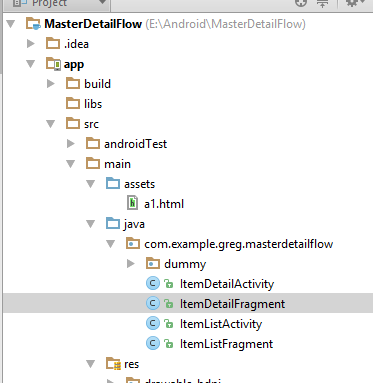
@Override
public View onCreateView(LayoutInflater inflater, ViewGroup container,
Bundle savedInstanceState) {
View rootView = inflater.inflate(R.layout.fragment_item_detail, container, false);
WebView myWebView = ((WebView) rootView.findViewById(R.id.website_detail));
// Show the dummy content as text in a TextView.
if (mItem != null) {
WebSettings settings = myWebView.getSettings();
settings.setDefaultTextEncodingName("utf-8");
settings.setSupportZoom(true);
settings.setBuiltInZoomControls(true);
//myWebView.loadUrl(mItem.website_url);
myWebView.loadUrl("file:///android_asset/a1.html");
// line below will set web page inside web view
myWebView.setWebViewClient(new WebViewClient());
}
return rootView;
}
Code listing at the bottom is the complete code include hiding the zoom control on the UI.
below is what I have researched links:
http://stackoverflow.com/questions/5125851/enable-disable-zoom-in-android-webview
http://stackoverflow.com/questions/18602676/android-studio-how-to-load-html5-content-from-a-local-path-using-webview
http://myexperiencewithandroid.blogspot.de/2011/09/android-loaddatawithbaseurl.html
http://blog.tourizo.com/2009/02/how-to-display-local-file-in-android.html
-------------------------------------------------------------
http://www.techjini.com/blog/2009/01/10/android-tip-1-contentprovider-accessing-local-file-system-from-webview-showing-image-in-webview-using-content/
I think if your HTML data can have a link like
<img src=content://com.tourizo.android.localfile/foo.jpg>
-------------------------------------------------------------
final String mimeType = "text/html";
final String encoding = "utf-8";
WebView wv;
try {
InputStream is = getAssets().open("test.html");
int size = is.available();
// Read the entire asset into a local byte buffer.
byte[] buffer = new byte[size];
is.read(buffer);
is.close();
// Convert the buffer into a string.
String strContent = new String(buffer);
wv = (WebView) findViewById(R.id.webview);
wv.loadData(strContent, mimeType, encoding);
} catch (IOException e) {
// Should never happen!
throw new RuntimeException(e);
}
}
-------------------------------------------------------------
package com.example.greg.masterdetailflow;
import android.os.Bundle;
import android.app.Fragment;
import android.view.LayoutInflater;
import android.view.MotionEvent;
import android.view.View;
import android.view.ViewGroup;
import android.webkit.WebSettings;
import android.webkit.WebViewClient;
import android.widget.TextView;
import android.webkit.WebView;
import android.widget.ZoomButtonsController;
import com.example.greg.masterdetailflow.dummy.DummyContent;
/**
* A fragment representing a single Item detail screen.
* This fragment is either contained in a {@link ItemListActivity}
* in two-pane mode (on tablets) or a {@link ItemDetailActivity}
* on handsets.
*/
public class ItemDetailFragment extends Fragment {
ZoomButtonsController zoom_control = null;
/**
* The fragment argument representing the item ID that this fragment
* represents.
*/
public static final String ARG_ITEM_ID = "item_id";
/**
* The dummy content this fragment is presenting.
*/
private DummyContent.DummyItem mItem;
/**
* Mandatory empty constructor for the fragment manager to instantiate the
* fragment (e.g. upon screen orientation changes).
*/
public ItemDetailFragment() {
}
@Override
public void onCreate(Bundle savedInstanceState) {
super.onCreate(savedInstanceState);
if (getArguments().containsKey(ARG_ITEM_ID)) {
// Load the dummy content specified by the fragment
// arguments. In a real-world scenario, use a Loader
// to load content from a content provider.
mItem = DummyContent.ITEM_MAP.get(getArguments().getString(ARG_ITEM_ID));
}
}
@Override
public View onCreateView(LayoutInflater inflater, ViewGroup container,
Bundle savedInstanceState) {
View rootView = inflater.inflate(R.layout.fragment_item_detail, container, false);
WebView myWebView = ((WebView) rootView.findViewById(R.id.website_detail));
// Show the dummy content as text in a TextView.
if (mItem != null) {
final WebSettings settings = myWebView.getSettings();
settings.setDefaultTextEncodingName("utf-8");
settings.setSupportZoom(true);
settings.setBuiltInZoomControls(true);
if (android.os.Build.VERSION.SDK_INT >= android.os.Build.VERSION_CODES.HONEYCOMB) {
// Use the API 11+ calls to disable the controls
settings.setBuiltInZoomControls(true);
settings.setDisplayZoomControls(false);
} else {
// Use the reflection magic to make it work on earlier APIs
getControls();
}
if (zoom_control!=null && zoom_control.getZoomControls()!=null)
{
// Hide the controlls AFTER they where made visible by the default implementation.
zoom_control.getZoomControls().setVisibility(View.GONE);
}
//myWebView.loadUrl(mItem.website_url);
myWebView.loadUrl("file:///android_asset/a1.html");
// line below will set web page inside web view
myWebView.setWebViewClient(new WebViewClient());
}
return rootView;
}
private void getControls() {
try {
Class webview = Class.forName("android.webkit.WebView");
//Method method = webview.getMethod("getZoomButtonsController");
zoom_control = (ZoomButtonsController) webview.getMethod("getZoomButtonsController").invoke(this, null);
} catch (Exception e) {
e.printStackTrace();
}
}
}
Webview when click on URL link stays inside webview
import android.webkit.WebView;(Alt-enter to add this)
@Override
public View onCreateView(LayoutInflater inflater, ViewGroup container,
Bundle savedInstanceState) {
View rootView = inflater.inflate(R.layout.fragment_item_detail, container, false);
WebView myWebView = ((WebView) rootView.findViewById(R.id.website_detail));
// Show the dummy content as text in a TextView.
if (mItem != null) {
myWebView.loadUrl(mItem.website_url);
myWebView.setWebViewClient(new WebViewClient());
}
return rootView;
}
http://www.techotopia.com/index.php/An_Android_Studio_Master/Detail_Flow_Tutorial
http://developer.android.com/guide/webapps/webview.html#HandlingNavigation
Monday, September 8, 2014
Master detail flow
http://www.techotopia.com/index.php/An_Android_Studio_Master/Detail_Flow_Tutorial
Friday, September 5, 2014
Android starting point
Android. Intent. Action. Main
Android. Intent. Category. LAUNCHER
Indicates icon appear at apps screen.
Thursday, August 14, 2014
URL not found: C:\Program Files (x86)\Android\android-studio\sdk\temp\support_r20.zip (Access is denied)
A work around is to run the SDK Manager as Administrator.
When Android Studio is installed under C:\Program Files (x86)\Android\... by e.g. installing for all users it is unable to update the SDK.  The following errors are shown:

Preparing to install archives
Downloading Android SDK Tools, revision 23.0.2
URL not found: C:\Program Files (x86)\Android\android-studio\sdk\temp\tools_r23.0.2-windows.zip (Access is denied)
Sunday, June 1, 2014
Saturday, May 31, 2014
Frameworks detected: Android framework is detected in the project Configure
http://stackoverflow.com/questions/18386154/android-framework-is-detected-in-the-project
Friday, May 30, 2014

Tuesday, May 27, 2014
Android import project
https://www.youtube.com/watch?v=1MyBO9z7ojk
http://stackoverflow.com/questions/16588064/how-do-i-add-a-library-project-to-the-android-studio
http://chmcguir.wordpress.com/2013/09/23/android-studio-importing-library-projects/
http://stackoverflow.com/questions/16588064/how-do-i-add-a-library-project-to-the-android-studio
http://chmcguir.wordpress.com/2013/09/23/android-studio-importing-library-projects/
http://stackoverflow.com/questions/20310164/how-to-import-eclipse-library-project-from-github-to-android-studio-project
Monday, May 26, 2014
Android - import project has message frame work detected
(below is not complete)
You have to select run , then configure the run as Android applicaiton, and select module then it will run.
You have to select run , then configure the run as Android applicaiton, and select module then it will run.
Android - ViewPager
http://developer.android.com/training/animation/screen-slide.html
https://m.facebook.com/Slidenerd/posts/207435452769966
https://m.facebook.com/Slidenerd/posts/207435452769966
https://github.com/JakeWharton/Android-ViewPagerIndicator
https://www.youtube.com/watch?v=C6_1KznO95A
http://blog.sqisland.com/2012/07/android-swipe-image-viewer.html
http://blog.sqisland.com/2012/09/android-swipe-image-viewer-with-viewpager.html
https://github.com/chiuki/android-swipe-image-viewer
http://viewpagerindicator.com/
http://stackoverflow.com/questions/13796382/android-viewpager-as-image-slide-gallery
http://www.smashingmagazine.com/2013/02/01/android-carousel-design-pattern/
http://www.edumobile.org/android/android-beginner-tutorials/view-pager-example-in-android-development/
Sunday, May 25, 2014
Android Studio - How to add a jar library
I download this demo from the link below and found out when build it, it says missing the android support lib v4, so I started to looking for solution of how to add a jar library. Found video below:
http://www.e-nature.ch/tech/simple-tutorial-for-a-smooth-horizontal-view-slider-with-android/
The link below can get you started, but you need to read through the entire view since he made a mistake then he corrected it.
https://www.youtube.com/watch?v=fHEvI_G6UtI
The above video ia not completely correct according to current Android studio (I am using 0.5.8)
below is how I added jar file for andriod support v4
Find the jar file first then do copy
In Android studio create a new directory "libs" right click on your app (see below)
create the libs folder
Paste the jar file
Confirm
you have to change build.gradle file, add dependencies. NOTE the video on top does not work at this point, I have to changed to use the format below to make it work
dependencies{
compile files ('libs/android-support-v4.jar')
}
I got help from the link below:
From here to project build and working
Android studio import Intelij idea projects => Migrate Project to Gradle? This project does not use the Gradle build system...
Migrate Project to Gradle?
This project does not use the Gradle build system. We recommend that you migrate to using the Gradle build system.
More Information about migrating to GradleDon't show this message again.http://stackoverflow.com/questions/21606504/cant-migrate-project-to-gradle-in-android-studio
The project thinks it's still a non-Gradle based project; it's not the presence of the build.gradle file that makes it Gradle-based, but it's how the project was set up in the first place. You'll need to re-import your project to finish the conversion to Gradle.
First, though, it looks like you don't have a settings.gradle file; it looks like you need one. Since you've set up your project as a single-module project, then you can put the file in your project's root directory, next to build.gradle. It should contain this:
import ':'
In the future if you add more modules to your project you may want to convert it to a multi-module directory structure, but you don't need to worry about that now. In any event, now you need to do the re-import in Android Studio:
- Close your project
- Back up your project
- Delete the .idea folder in the root directory of the project
- Delete all the .iml files in your project
- Import your project in Android Studio, and in the dialog that prompts you for a file, choose thebuild.gradle file.
- After this you should be good to go.
I followed yellow highlighted and open android studio then import project, open the root folder it prompt me the following screen:

Just click "Next"

Click "Finish"

It imported with some warnings, but I still can run the entire project successfully.
Subscribe to:
Posts (Atom)